


To support our research and detailed appliance reviews, we may earn a small commission from qualifying purchases made through our links, at no extra cost to you. As an Amazon Associate, I earn from qualifying purchases.
To support our research and detailed appliance reviews, we may earn a small commission from qualifying purchases made through our links, at no extra cost to you. As an Amazon Associate, I earn from qualifying purchases.
If you’re searching for how to connect smart thinq refrigerator to wifi, you’re probably in one of two situations. Either you just bought an LG ThinQ refrigerator and want all the smart features working fast, or you’re stuck in the setup loop and wondering why something so simple suddenly feels technical. I’ve helped troubleshoot this more than once, and in my experience, the problem is usually not the refrigerator itself. It’s often the network band, the phone’s connection behavior, or one tiny setup step that gets missed.
Once your fridge is online, the experience is genuinely useful. You can get proactive alerts, monitor status from the SmartThinQ app, use some Smart Diagnosis tools, and manage key settings without standing in the kitchen. That’s why it’s worth getting right.
If you’re also comparing connected appliances, I’d put this in the same broader smart-home conversation as Benefits of Midea Smart Refrigerator, Midea Smart Refrigerator for Your Home, and even style-focused options like a Glass Door Refrigerator. But first, let’s get your LG connected.
1. Why LG ThinQ Refrigerator Wi-Fi Setup Fails So Often
Most setup failures come down to one simple truth: the refrigerator’s internal Wi-Fi hardware usually works only on a 2.4 GHz network.
That means if your phone is using an lg thinq refrigerator 5ghz wifi path during setup, the handshake often fails. I’ve seen this happen especially with newer mesh systems like Eero, Google Nest, or ISP routers that merge both bands under one network name.
Common reasons setup fails:
- Your phone is connected to 5 GHz instead of 2.4 GHz
- The app switches away from the local fridge signal too early
- The network password case-sensitive issue is missed on iPhone
- Mobile data interferes with device registration
- The refrigerator never enters pairing mode correctly
- A wireless router or firewall blocks the registration request
This is also why many people end up searching for lg thinq refrigerator wont connect to wifi even when the refrigerator is technically fine.
2. What You Need Before You Start
Before I walk through how to connect smart thinq refrigerator to wifi, I recommend checking these basics first.
Pre-setup checklist
Make sure you have:
- An LG ThinQ refrigerator with Wi-Fi support
- The LG ThinQ app installed from the LG ThinQ app support page or your app store
- An active LG account
- A stable 2.4 GHz home Wi-Fi network
- Your Wi-Fi password ready
- Your phone near the refrigerator
- Bluetooth and location permissions enabled if the app asks for them
The 2.4 GHz rule matters more than anything
Let me be blunt here. If the fridge is trying to connect through lg thinq refrigerator 5ghz wifi, it will usually fail.
In my experience, this is the number one issue.
If your router combines 2.4 GHz and 5 GHz into one SSID, try one of these:
- Temporarily disable 5 GHz in your router settings
- Stand farther from the router so the phone drops to 2.4 GHz
- Use a guest network locked to 2.4 GHz
- Avoid connecting through a Wi-Fi repeater during first-time setup if possible
A repeater can work later, but during setup, direct connection to the main router is usually more reliable.
3. How to Connect Your LG ThinQ Refrigerator to Wi-Fi
Here is the full process I recommend.
Step 1: Install the app and sign in
Download the app and sign in to your LG account.
If you need official guidance, the LG Support site is a good reference for model-specific help. Once you’re logged in, open the app dashboard.
Step 2: Add your refrigerator
Tap the + icon in the app.
Choose:
- Appliance
- Refrigerator
Then follow the prompts that match your model.
Some models show the Wi-Fi setup button on the front display. Others hide it on the inside top trim near the door.
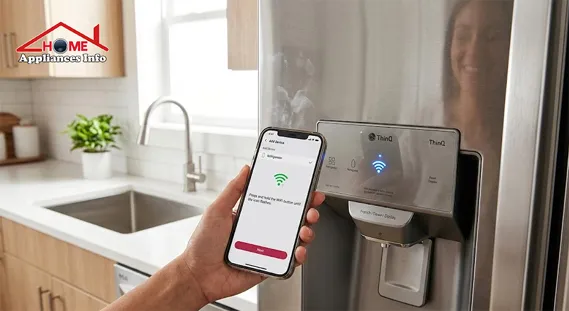
Step 3: Use the LG refrigerator Wi-Fi button 3 seconds rule
This step matters.
Press and hold the Wi-Fi button for about three seconds. This is the lg refrigerator wifi button 3 seconds step that many users rush through.
You want the Wi-Fi indicator light to start blinking. A blinking light usually means the refrigerator has entered pairing mode and is broadcasting its temporary connection signal.
If you tap too quickly, nothing happens. If you hold too long on some models, the response may vary. I usually count slowly: one, two, three.
Step 4: Complete the network handshake
On Android
Android setup is usually easier.
The app often detects the refrigerator automatically. Then it asks you to:
- Select your home Wi-Fi network
- Enter the password
- Confirm and wait
If all goes well, the refrigerator joins your home network within a minute or two.
On iPhone
iPhone setup can be a little trickier.
This is where many lg thinq app failed registration refrigerator complaints begin.
You may need to:
- Minimize the ThinQ app
- Open Settings > Wi-Fi
- Join the temporary refrigerator network, often named something like LG_Smart_Fridge
- If prompted, enter the temporary password based on the network name ending
For example, if the fridge network ends in abcd, the password may be abcdabcd.
This password is often case-sensitive. That small detail matters. I’ve seen setups fail repeatedly because uppercase and lowercase letters weren’t entered exactly.
Then go back to the app and finish setup.
Step 5: Wait for sync to finish
Once the app sends your network details, the refrigerator should connect in about one to two minutes.
When successful:
- The refrigerator appears in your app dashboard
- The Wi-Fi light becomes steady instead of blinking
- Remote features become available
- You may begin receiving proactive alerts
If the sync freezes at 99%, don’t panic yet. That usually points to registration or network conflict, not a dead appliance.
4. Quick Troubleshooting Table for Common Wi-Fi Problems
Here’s the table I wish more support pages included.
| Problem | Likely Cause | What I Recommend |
|---|---|---|
| Fridge not found in app | Pairing mode not active | Press and hold the Wi-Fi button again for 3 seconds |
| Setup fails at 99% | App registration conflict | Turn off mobile data and retry |
| iPhone won’t finish setup | Temporary password entered incorrectly | Recheck the case-sensitive password format |
| Fridge sees network but won’t join | 5 GHz conflict | Force phone and router to 2.4 GHz |
| Wi-Fi light won’t blink | Control board glitch | Unplug fridge or switch off breaker for 10–15 minutes |
| Setup works on hotspot but not home Wi-Fi | Router firewall or DHCP issue | Check router settings or restart the router |
| Weak signal in kitchen | Distance or interference | Move router closer or test without a Wi-Fi repeater |
5. What to Do When LG ThinQ Refrigerator Won’t Connect to Wi-Fi
If you’re dealing with lg thinq refrigerator wont connect to wifi, here’s the order I use to troubleshoot it.
Turn off mobile data during setup
This one is surprisingly effective.
Phones sometimes jump away from the temporary fridge connection and back to cellular data, especially if the local signal looks weak. That breaks the setup flow.
I always suggest turning off:
- Mobile data
- VPN
- Auto-connect to other known Wi-Fi networks
Then try again.
Check for special characters in the Wi-Fi password
This isn’t always the issue, but it does come up.
Some smart appliances struggle with unusual symbols in older or basic onboard network chips. If your password includes multiple special characters, test a simpler password temporarily if your network security setup allows it.
Fix mesh router conflicts
Modern mesh systems are convenient. They are not always appliance-friendly.
If your wireless router merges 2.4 GHz and 5 GHz into one name, the refrigerator may never complete setup properly. I’ve seen this especially with kitchens farther from the main node, where the phone roams between bands during setup.
Try this:
- Disable 5 GHz temporarily
- Pause band steering if your router allows it
- Connect close to the main router, not a satellite point
- Retry setup after restarting the router
This is the real-world solution to many lg thinq refrigerator 5ghz wifi complaints.
Soft reset the refrigerator
If the Wi-Fi system seems frozen, power-cycle the appliance.
Do this properly:
- Unplug the refrigerator from the wall
or - Turn off the kitchen breaker
Wait 10 to 15 minutes.
Then restore power and retry setup.
A short button press on the panel usually won’t clear a stuck communication module. A full power reset often will.
Try the hotspot test
This is my favorite diagnostic trick because it tells you where the problem lives.
Turn on a second phone’s hotspot and try connecting the refrigerator to that hotspot.
If it works:
- The refrigerator hardware is likely fine
- The app probably works
- Your home router is likely the issue
That points to firewall rules, DHCP lease trouble, SSID steering, or local network restrictions.
If it does not work even on a hotspot, look more closely at the fridge, app version, or account registration.
6. How to Fix an LG ThinQ App Failed Registration Refrigerator Error
The phrase lg thinq app failed registration refrigerator usually refers to that maddening moment when everything appears to work, then the app fails near the end.
I’ve run into this more on iPhone than Android, though it can happen on both.
What usually fixes it
- Turn off cellular data completely
- Restart the ThinQ app
- Re-enter pairing mode on the fridge
- Confirm your phone is on 2.4 GHz
- Retry with the phone close to the fridge
- Restart the router if the app keeps hanging
Also check these details
- App permissions are enabled
- The LG account is signed in correctly
- The refrigerator isn’t already registered to another account
- The app is updated to the latest version
If your unit was previously owned or displayed in a showroom, account registration conflicts can happen.
For official network guidance, I’d also review Federal Communications Commission Wi-Fi basics if you want a broader understanding of how wireless behavior affects device setup.
7. Features You Unlock After Connection
Once you complete how to connect smart thinq refrigerator to wifi, the payoff is real.
You may gain access to:
- Remote monitoring
- Filter or maintenance notifications
- Door-open alerts
- Temperature status checks
- Limited control features depending on model
- Smart Diagnosis support options
- Warranty and product registration benefits
I’ve found that the best part isn’t novelty. It’s prevention. If a door is left open or a filter needs attention, the app can catch it before it becomes a bigger problem.
8. Practical Tips I’ve Learned From Real Setup Attempts
After working through this process a few times, these are the habits I trust most:
Keep the phone close to the refrigerator
Not just in the same room. Close.
During setup, the fridge is briefly acting like its own tiny access point. Distance matters.
Avoid setup during network instability
If your internet has been dropping that day, wait.
Appliance onboarding is less forgiving than normal browsing or video streaming.
Update firmware after a successful connection
If the refrigerator connects once, check whether a firmware update is available. In my experience, some flaky behavior improves after the first update.
Don’t overcomplicate your first setup
Use the main router first. Skip the repeater. Skip the guest isolation settings. Keep it simple.
After everything is stable, you can optimize the network later.
If you’re comparing appliance types for a remodel, setup ease is one factor I’d also weigh alongside aesthetics and storage, especially when choosing between smart models and a Glass Door Refrigerator design.
9. FAQs
Why is my LG ThinQ refrigerator not connecting to Wi-Fi?
The most common cause is a 5 GHz network mismatch. These refrigerators usually require 2.4 GHz Wi-Fi during setup.
What does the LG refrigerator Wi-Fi button do?
It puts the fridge into pairing mode. For most models, use the lg refrigerator wifi button 3 seconds method until the Wi-Fi indicator light blinks.
Why does my setup fail at 99%?
That often points to an lg thinq app failed registration refrigerator problem, mobile data interference, or a router-side conflict.
Can I use a mesh router with my LG fridge?
Yes, but setup may fail if the router merges both bands. Temporarily forcing 2.4 GHz usually helps.
Is the temporary LG fridge password case-sensitive?
Yes. On iPhone especially, the temporary setup password may be case-sensitive, and entering it incorrectly can stop registration.
Will a Wi-Fi repeater help?
Sometimes later, yes. But for initial setup, I recommend connecting through the main router first, then testing the Wi-Fi repeater after the refrigerator is already online.
Conclusion
If you’ve been struggling with how to connect smart thinq refrigerator to wifi, the fix is usually simpler than it looks. Focus on the basics first: use 2.4 GHz, hold the Wi-Fi button for three seconds, watch for the blinking indicator, and keep your phone from switching to cellular or 5 GHz mid-process.
When lg thinq refrigerator wont connect to wifi, I usually check the router before blaming the refrigerator. And when the app stalls, especially with an lg thinq app failed registration refrigerator message, small details like case-sensitive passwords or mobile data interference are often the real cause.
Once connected, the smart features are worth it. You get convenience, proactive alerts, and better visibility into how the appliance is performing. If you’re building out a smarter kitchen, this fits naturally alongside ideas like Benefits of Midea Smart Refrigerator, Midea Smart Refrigerator for Your Home, and Why an Inverter Refrigerator Is the Best.
If you haven’t succeeded yet, try again with a clean 2.4 GHz connection and the hotspot test. In my experience, that one move often reveals exactly where the setup is breaking.
References

🌐 FOUNDER & DIGITAL PUBLISHER
Muhammad Ali
Founder | SEO Strategist & E-E-A-T Digital Publishing Specialist

📈 SEO Strategy
🛠️ Appliance Optimization
🛡️ E-E-A-T Standards
Muhammad Ali is a digital publisher, SEO strategist, and founder of Home Appliances Info. He specializes in home appliance optimization, structured schema networks, and advanced E-E-A-T digital publishing standards to ensure accurate, trustworthy content across the platform.
1 Comment
Pingback: Smart Plug for Refrigerator: Safety Risks & Best Energy Monitor Plugs